Multi Node Kubernetes Installation Guide
Introduction
This IVAAP Installation guide will walk you through all processes for installing IVAAP on large-scale, multi-node orchestration architecture. IVAAP supports deployments an Azure AKS clusters, AWS EKS clusters, and Openshift clusters. This guide assumes that all requirments for IVAAP have been met described in the Technical Data Sheet.
For simplicity reasons, the majority of this guide will require using Docker CLI on Linux as a dependency. Though running IVAAP on your Kubernetes cluster will have no dependency on Docker CLI, the scripts used to retag images and to create the IVAAP deployment YAML will use the docker daemon. Of course, all of the processes here can be done manually many other ways as well, if desired.
Image Retagging
Unlike in K3s where we can load images directly to the K3s service, images will need to be retagged for your own container registry so that your large cluster can access them. In ivaap-helpers, we provide a convinent script to do this. The script is a bash script, and does require docker cli tool. The script can be found inside the deployment package at <DEPLOYMENT_PACKAGE>/ivaap-helpers/image-retagging/retag-images.sh.
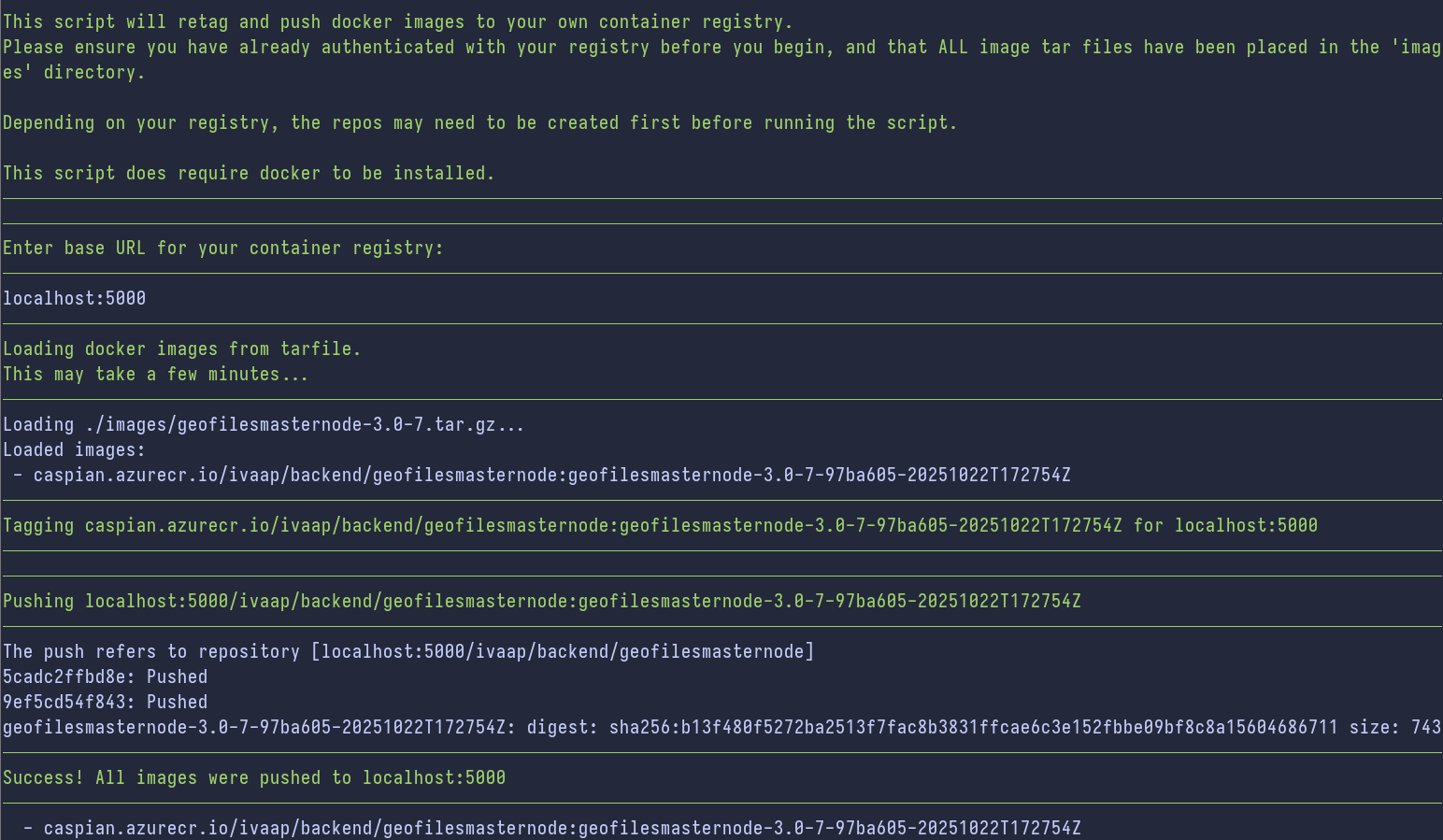
To use the script, place all of your *.tar.gz container image files provided in the package into the ivaap-helpers/image-retagging/images directory. In the package delivered, you will have several image .tar.gz files. The main one named docker-images.tar.gz that can be found in the BASE helm template package, as well as backend data connectors that can be found in the connectors directory of the package.
Prepare Images
user@linux ~/ivaap-package  $ ls
2025.1.1_BASE_IVAAPHelmTemplate_Chart-v1.2.0-2026-02-26.tar.gz  connectors
Extract the BASE helm template tar.gz file where you will find docker-images.tar.gz
# Contents of the base helm package
user@linux ~/ivaap-package  $ ls -1 2025.1.1_BASE_IVAAPHelmTemplate_Chart-v1.2.0-2026-02-26
docker-images.tar.gz
IVAAP_Documentation_20260211T223750Z.zip
IVAAPHelmTemplate
ivaap-helpers
ivaap-postgres-2025.1-2026-02-11.sql

# Contents of the connectors directory - these are also container images, and should not be extracted
user@linux ~/ivaap-package  $ ls -1 connectors/
blobstoragenode-3.0-7.tar.gz
mongonode-3.0-11.tar.gz
Now that you have access to all container image .tar.gz files availabe to you, move them into ivaap-helpers/image-retagging/scripts.
user@linux:/opt/ivaap/ivaap-helpers/image-retagging$ ls --tree
.
├── images
│ ├── blobstoragenode-3.0-7.tar.gz
│ ├── docker-images.tar.gz
│ └── mongonode-3.0-11.tar.gz
└── retag-images.sh
Dry-run
Now you are ready to run the script. The script relies on relative path of the images directory, so it required to be run within the ivaap-helpers/image-retagging directory. Make sure to cd there first. By default, just running the script without any arguments will do a "dry-run." This will retag the images only, and will not push to your registry. Run the script with the command ./retag-images.sh.
The script will prompt the user to input the container registry. To ensure accuracy, below is a breakdown of a container image's structure:
# This is a full image, <registry>/<repository>:<tag>
caspian.azurecr.io/ivaap/backend/blobstoragenode:blobstoragenode-3.0-16-f59d956-20260303T181434Z
- The registry is
caspian.azurecr.io - The repository for this image is
ivaap/backend/blobstoragenode - The tag is
blobstoragenode-3.0-16-f59d956-20260303T181434Z
IVAAP's default container registry is caspian.azurecr.io. In the prompt from the script, you will need to enter your own. If your registry is an Azure Container Registry like caspian, it will be similar, ending with *.azurecr.io. If your registry is on AWS, it will be something like 245634265005.dkr.ecr.us-west-2.amazonaws.com. Type in or paste your registry to the script at the prompt, then press enter to continue.
Once the script complets, you should see something similar to this:
───────────────────────────────────────────────────────────────────────────────────────────────────────────────────────────────
Dry run -- retagging only
───────────────────────────────────────────────────────────────────────────────────────────────────────────────────────────────
───────────────────────────────────────────────────────────────────────────────────────────────────────────────────────────────
Retagged image: myNewRegistry.azurecr.io/ivaap/backend/opensdublobstorager3node:opensdublobstorager3node-3.0-40-5fc7e34-20260303T181434Z
───────────────────────────────────────────────────────────────────────────────────────────────────────────────────────────────
───────────────────────────────────────────────────────────────────────────────────────────────────────────────────────────────
Success! All images were retagged to myNewRegistry.azurecr.io
───────────────────────────────────────────────────────────────────────────────────────────────────────────────────────────────
  - caspian.azurecr.io/ivaap/backend/blobstoragenode:blobstoragenode-3.0-16-f59d956-20260303T181434Z
  - caspian.azurecr.io/ivaap/backend/opensdublobstorager3node:opensdublobstorager3node-3.0-40-5fc7e34-20260303T181434Z
───────────────────────────────────────────────────────────────────────────────────────────────────────────────────────────────
Below is the list of new images for myNewRegistry.azurecr.io
───────────────────────────────────────────────────────────────────────────────────────────────────────────────────────────────
  - myNewRegistry.azurecr.io/ivaap/backend/blobstoragenode:blobstoragenode-3.0-16-f59d956-20260303T181434Z
  - myNewRegistry.azurecr.io/ivaap/backend/opensdublobstorager3node:opensdublobstorager3node-3.0-40-5fc7e34-20260303T181434Z
───────────────────────────────────────────────────────────────────────────────────────────────────────────────────────────────
To push these images to your registry, run the script again with the '--push' option.
───────────────────────────────────────────────────────────────────────────────────────────────────────────────────────────────
This dry run is helpful to ensure that the image tar files are setup properly for the script, and it also provides a printout of what the retagged images and repositories look like. This is important because you may need to create your repositories in your container registry before pushing the images. This will depend entirely on your container registry configuration. By default with Azure ACR, new repositories that do not exist yet will be automatically created when an image for the new repostiory is pushed. This may not always be the case, and will vary depending on your container registry configuration. By having the list, you will have a clear picture of what repositories to create within your container registry.
# This is a full image, <registry>/<repository>:<tag>
myNewRegistry.azurecr.io/ivaap/backend/blobstoragenode:blobstoragenode-3.0-16-f59d956-20260303T181434Z
- The registry is
myNewRegistry.azurecr.io - The repository for this image is
ivaap/backend/blobstoragenode - The tag is
blobstoragenode-3.0-16-f59d956-20260303T181434Z
So in this example, if your registry configuration does not automatically create repositories, then ivaap/backend/blobstoragenode repository should be manually created before pushing. Do this now for each image listed in the dry-run before proceeding to the "Push Images" section below.
Push Images
Now you are ready to push the images. To do this, you first need to use docker to authenticate to your container registry, and ensure you have the ability to push images to the registry. Once authenticated, simply run the script again, but with the --push argument (./retag-images.sh --push). Like in the dry-run, enter your container registry when prompted.
You will be able to watch in realtime as the script goes through and pushes images to your registry.
────────────────────────────────────────────────────────────────────────────────────────────────────────────────────────────
Tagging caspian.azurecr.io/ivaap/backend/blobstoragenode:blobstoragenode-3.0-16-f59d956-20260303T181434Z for myNewRegistry.azurecr.io
────────────────────────────────────────────────────────────────────────────────────────────────────────────────────────────
────────────────────────────────────────────────────────────────────────────────────────────────────────────────────────────
Pushing myNewRegistry.azurecr.io/ivaap/backend/blobstoragenode:blobstoragenode-3.0-16-f59d956-20260303T181434Z
────────────────────────────────────────────────────────────────────────────────────────────────────────────────────────────
The push refers to repository [myNewRegistry.azurecr.io/ivaap/backend/blobstoragenode]
a4dbb804d7c6: Pushing [==================>                                ]  236.7MB/629.5MB
93532db0d008: Pushing [================>                                  ]  188.3MB/581.2MB
Below is a successful result. It shows "Success!" with a list of the caspian images that were successfully pushed, as well as the list of new images pushed to your registry.
───────────────────────────────────────────────────────────────────────────────────────────────────────────────────────
Success! All images were pushed to myNewRegistry.azurecr.io
───────────────────────────────────────────────────────────────────────────────────────────────────────────────────────
  - caspian.azurecr.io/ivaap/backend/blobstoragenode:blobstoragenode-3.0-16-f59d956-20260303T181434Z
  - caspian.azurecr.io/ivaap/backend/opensdublobstorager3node:opensdublobstorager3node-3.0-40-5fc7e34-20260303T181434Z
───────────────────────────────────────────────────────────────────────────────────────────────────────────────────────
Below is the list of new images for myNewRegistry.azurecr.io
───────────────────────────────────────────────────────────────────────────────────────────────────────────────────────
  - myNewRegistry.azurecr.io/ivaap/backend/blobstoragenode:blobstoragenode-3.0-16-f59d956-20260303T181434Z
  - myNewRegistry.azurecr.io/ivaap/backend/opensdublobstorager3node:opensdublobstorager3node-3.0-40-5fc7e34-20260303T181434Z
PostgreSQL Database
IVAAP uses a PostgreSQL database to store user information, dashboards, projects, etc. For cloud deployments in large clusters, SLB recommends using a managed cloud database service.
For requirments of the PostgreSQL database, refer to the IVAAP Technical Data Sheet and the Database Administration guide.
The IVAAP package you recieved from SLB will contain a .sql file. This is the starting database schema to load into your PostgreSQL databas) once it is ready.
For the next section, you will need the following information about your PostgreSQL database:
- Database hostname
- Database name to be used with IVAAP
- User/Role for IVAAP's database (must meet requirments in DBA Guide)
- That User/Role's password to authenticate with the database
- The port opened for the PostgreSQL instance (default is 5432)
Deployment Configuration YAML
In the IVAAP Package, you will be provided a script to assist with generating your deployment configuration values.yaml file. Now that all IVAAP container images have been retagged for your container registry, and the PostgreSQL database has been setup - you will have all the information required to generate this YAML file.
user@linux ~/ivaap-package  $ ls
2025.1.1_BASE_IVAAPHelmTemplate_Chart-v1.2.0-2026-02-26.tar.gz  connectors  generate-yaml.sh
Inside the IVAAP package, you will find generate-yaml.sh. Simply run this script inside the package directory, and you will be prompted to input information regarding your deployment. The script will do all of the following:
- Run a dependency check to ensure docker is installed and required files are available
- Prompt for the IVAAP License
- Prompt for the deployment type (EKS, AKS, Openshift, or K3s)
- Prompt for the desired namespace
- Prompt for the FQDN (Fully Qualified Domain Name)
- Prompt for your base container registry
- Prompt for your PostgreSQL information
- Generate random Circle of Trust keys (and encrypt)
- Generate random ActiveMQ password (and encrypt)
- Encrypt the Database password with a randomly generated encryption key
- Generate a YAML file ready to be deployed, with all information provided
Below is an example of the script's execution:
user@linux ~/ivaap-package $ ./generate-yaml.sh

==> Dependency check passed.

==> Paste the full contents of license.dat below.
INFO: Once you have entered the license, press Ctrl+D to continue.
FEATURE IVAAPServer INTD 1.0 01-mar-2026 uncounted \
        VENDOR_STRING=users:5 HOSTID=ANY SIGN="034B Z640 54Z0 618Z \
        888C 0CF3 1110 88B8 B618 8C5F 7F01 18B8 BFF8 68F5 Z88E 8B41 \
        B04C 8E38 8ZDE 1E5F 8431"
==> OK

Enter you kubernetes cluster type.

Options:
Openshift, EKS, AKS, or K3s
EKS

==> OK

Enter desired namespace for IVAAP deployment:
ivaap

==> OK

Enter the desired FQDN (Fully Qualified Domain Name) for your IVAAP deployment.
Format should not include hypertext protocol.

Example: slb.ivaap.com
ivaap.slb.com

==> OK

Enter your container registry.
ACR Example: caspian.azurecr.io
ECR Example: 245634265005.dkr.ecr.us-west-2.amazonaws.com
myregistry.azurecr.io

==> OK

Enter PostgreSQL database host:
mydbhost

Enter PostgreSQL database name:
mydbname

Enter PostgreSQL database port:
5432

Enter PostgreSQL role/username:
ivaapserveradmin

Enter PostgreSQL password:


==> OK


==> Generating circle of trust tokens...

==> Generating random ActiveMQ password...

==> Encrypting database password...

==> Generating Deployment YAML...

✔ Deployment YAML generated successfully.
Output file: ivaap.values.yaml

INFO: IVAAP can now be deployed using this YAML and the Helm Template.

helm upgrade --install /path/to/IVAAPHelmTemplate \
  -f /path/to/IVAAPHelmTemplate/values.yaml \
  -f /path/to/ivaap.values.yaml \
  -n ivaap
Now that you have your deployment configuration YAML, you have all the pieces to deploy IVAAP onto your cluster. The final output of generate-yaml.sh provides a simple Helm command example to be able to do this, but there are other methods as well. From here, refer to the Deployment Methods section of the General Helm Configuration guide to understand more ways to deploy IVAAP, and find what is most suitable for your use case.