K3s Single Node Installation Guide
This IVAAP Installation guide will walk you through all processes for installing IVAAP on a single server VM host running K3s. This assumes the VM has already been provisioned and meets the requirements outlined in the Technical Datasheet.
Starting with IVAAP Helm Chart version 1.2.0, IVAAP for k3s will be provided as a single zip file. Inside this zip, will be the main IVAAP package tar file, a connectors directory which will contain the images for backend data connectors, and an installation script. The installation script will do everything required to get IVAAP up and running, so long as the VM dependencies of Helm and K3s are met.
user@linux ~/ivaap-package  $ ls
2025.1.1_BASE_IVAAPHelmTemplate_Chart-v1.2.0-2026-02-26.tar.gz  connectors  deploy-ivaap.sh
Basic Environment Setup
-
Update the host and install JQ
sudo apt-get update && sudo apt-get upgrade -y && sudo apt-get install -y jq && sudo reboot now -
Install K3s per official documentation for your distribution: Requirements | K3s
Ubuntu
For Ubuntu, this quick script should handle the install. If there are errors in your environment, please refer back to k3s official documentation. Please ensure to run this script as the user you intend to deploy and manage IVAAP with, as this script will configure appropriate user permissions for K3s. This is not meant to be run as root. The root user should never be used to manage your IVAAP deployment.
#!/bin/bash

# Install k3s
curl -sfL https://get.k3s.io | sudo sh -

# Checks nodes are available as root
sudo k3s kubectl get nodes

# Create local kube config
mkdir -p ~/.kube
sudo cp /etc/rancher/k3s/k3s.yaml ~/.kube/config
sudo chown $(id -u):$(id -g) ~/.kube/config
echo 'export KUBECONFIG=$HOME/.kube/config' >> ~/.bashrc

# Checks nodes are available as $user
k3s kubectl get nodes
RHEL9
#!/bin/bash
set -euo pipefail

# Install k3s
curl -sfL https://get.k3s.io | sudo sh -

# Ensure /usr/local/bin is in root's PATH
if ! sudo grep -q '/usr/local/bin' /root/.bashrc 2>/dev/null; then
  echo 'export PATH=/usr/local/bin:$PATH' | sudo tee -a /root/.bashrc >/dev/null
fi

# Fix sudo secure_path so "sudo k3s" works
if ! sudo grep -Rq '/usr/local/bin' /etc/sudoers /etc/sudoers.d 2>/dev/null; then
  echo 'Defaults secure_path = /sbin:/bin:/usr/sbin:/usr/bin:/usr/local/bin' | sudo tee /etc/sudoers.d/k3s-path >/dev/null
  sudo chmod 0440 /etc/sudoers.d/k3s-path
fi

# Checks nodes are available as root
sudo k3s kubectl get nodes

# Create local kube config
mkdir -p ~/.kube
sudo cp /etc/rancher/k3s/k3s.yaml ~/.kube/config
sudo chown $(id -u):$(id -g) ~/.kube/config

# Ensure user's shell has correct KUBECONFIG
if ! grep -qxF 'export KUBECONFIG=$HOME/.kube/config' ~/.bashrc; then
  echo 'export KUBECONFIG=$HOME/.kube/config' >> ~/.bashrc
fi

export KUBECONFIG=$HOME/.kube/config

# Checks nodes are available as $user
k3s kubectl get nodes
- Install Helm
The following command should install helm for both Ubuntu and RHEL9 distributions:
curl -fsSL https://raw.githubusercontent.com/helm/helm/main/scripts/get-helm-3 | sudo bash -s -
IVAAP Installation
As mentioned at the beginning of this guide, SLB now includes an installation script for IVAAP. This script removes the majority of previous manual processes, and completes these tasks automatically.
The goal of the script is simple - deploy IVAAP with basic configuration, local authentication, and no HTTPS terminator. Then, verify successful deployment of IVAAP by logging in with default credentials provided in the package before proceeded to advanced configuration, such as external authentication and HTTPS.
The script will run functions that do all of the following steps:
- Run a dependency check for Helm and K3s, and exit if they are not met.
- Prompt's the user to paste the IVAAP license (This is the only user interaction required).
- Create's
/opt/ivaapdirectory and subdirectories with proper permissions. - Extracts the IVAAP tar file to
/opt/ivaap. - Source
ivaap-helpersto the user's~/.bashrcfile. - Create's
ivaapnamespace. - Load's all images using
k3s ctr. - Install's Zalando postgres operator via Helm, creates a database, and load's the IVAAP schema.
- Generates unique Circle of Trust tokens, ActiveMQ password, and encryption keys.
- Encrypt's the Postgres Database password.
- Generate's the IVAAP deployment yaml based on all values from the previous functions.
- Deploy's IVAAP into K3s using the generated yaml.
To deploy, simply run the deploy-ivaap.sh script, and paste the license when prompted:
user@linux ~/ivaap-package  $ ./deploy-ivaap.sh
All dependencies are installed and ready.
Paste the full contents of license.dat below.
Press Ctrl-D when finished.
FEATURE IVAAPServer INTD 1.0 01-mar-2026 uncounted \
        VENDOR_STRING=users:5 HOSTID=ANY SIGN="034B Z640 54Z0 618Z \
        888C 0CF3 1110 88B8 B618 8C5F 7F01 18B8 BFF8 68F5 Z88E 8B41 \
        B04C 8E38 8ZDE 1E5F 8431"
OK
Do not worry if there are whitespace lines in the license when it is pasted in. The function within the script should take care of this during the formatting before applying the license to the deployment yaml.
Once the script is finished, you will see the kubectl output indicating that IVAAP has been installed:
Release "ivaap" does not exist. Installing it now.
NAME: ivaap
LAST DEPLOYED: Fri Mar  6 13:42:53 2026
NAMESPACE: ivaap
STATUS: deployed
REVISION: 1
TEST SUITE: None
Verify Successful Deployment
Next, let's do some verification steps to confirm the deployment was actually successful. Before starting this process, source your bashrc so that you can use ivaap-helpers commands. Do this by running the command source ~/.bashrc. Verify this by running the command ivaap-helpers to see the help page.
user@linux ~/ivaap-package  $ ivaap-helpers
IVAAP K8s Cheatsheet

Kubectl Shortcuts
---------------------------------------
ki <namespace>                                Shotcut for 'kubectl -n <namespace>' - can be used for all kubectl commands
ki exec <namespace> <pod> <container>         Shell into a pod with fuzzy search on pod name. Ex: 'ki exec ivaap backend playnode'

Quick Directory Access
---------------------------------------
cdir                                          cd to ivaap directory
vdir                                          cd to ivaap-volumes directory
ldir                                          cd to ivaap-volumes/logs directory

IVAAP Health
---------------------------------------
ibhealth <namespace>                          check health API for backend nodes
wibhealth <namespace>                         watch health API as backend nodes come up after restart

IVAAP Logging
---------------------------------------
adminserver.logs <namespace>                  View adminserver logs with command 'less'
activemq.logs <namespace>                     View activemq logs with command 'less'
proxy.logs <namespace>                        View proxy logs with command 'less'
backend.logs <namespace> <container-name>     View backend logs with command 'less'

IVAAP Metadata
---------------------------------------
icvt <namespace>                              Print version tags for image creation

IVAAP Database
---------------------------------------
encryptZalandoPGPassword <namespace>          Encrypt ivaapserver PostgreSQL users password.
ivaap_pgdump <namespace>                      Create postgres dump of IVAAP database

IVAAP Deployment Debugging
---------------------------------------
aailogs                                       Create tarball of all logs in ivaap-volumes/logs
ailogs                                        Create tarball of last 7 days of logs in ivaap-volumes/logs

IVAAP DevOps Administration
---------------------------------------
iastrust <namespace>                          Show circle of trust challenge and session tokens
iasabout <namespace>                          Show Adminserver about API
ibmetrics <namespace>                         Show ivaap backend metrics
ibabout <namespace>                           Show ivaap backend about

3rd Party Tools
---------------------------------------
installyq                                     Install yq on the host
installjq                                     Install jq on the host
These functions and aliases will be very useful when working with your IVAAP deployment. For a more detailed explaination of these, refer to IVAAP-Helpers.
Check pods
We can check the status of the pods with ki ivaap get pods:
user@linux ~/ivaap-package  $ ki ivaap get pods
NAME                                                  READY   STATUS    RESTARTS   AGE
adminserver-deployment-6b88cbfbf4-bbp8r               1/1     Running   0          10m
ivaap-activemq-deployment-74bbcc779c-hdfl9            1/1     Running   0          10m
ivaap-admin-deployment-6cfbb66d66-42m7l               1/1     Running   0          10m
ivaap-backend-deployment-55d74c9bc-pm9dk              9/9     Running   0          10m
ivaap-dashboard-deployment-867c48ccc9-w8cwl           1/1     Running   0          10m
ivaap-dashboard-publish-deployment-75d8fd6459-w2d98   1/1     Running   0          10m
ivaap-proxy-deployment-779f7f9d6b-h6cx8               1/1     Running   0          10m
If any pods have a status that is not Running, it is best to check with ki ivaap describe pod <podname>.
IVAAP Backend Health API
Next, verify that the backend pekko cluster is healthy, and that there is a healthy connection with ActiveMQ. This can be done with ivaap-helpers alias ibhealth ivaap.
user@linux /opt/ivaap master $ ibhealth ivaap
{
  "timestamp" : 1772824868931,
  "health" : "healthy",
  "available" : "admin,epsg,geofiles,geofiles::reservoirs,geofiles::seismic,messaging,mqgateway",
  "activeMQConnectionStatus" : {
    "healthy" : true
  }
}
If you get a 502, this means the backend pod is not coming up, and the pod status is likely not in the Running state. Check the pod with ki ivaap describe pod -l app=ivaap-backend, which should show some indication of what is happening.
user@linux /opt/ivaap master $ ibhealth ivaap
<html>
<head><title>502 Bad Gateway</title></head>
<body>
<center><h1>502 Bad Gateway</h1></center>
<hr><center>nginx</center>
</body>
</html>
If health or activeMQConnectionStatus.healthy show anything other than healthy, try deleting the backend pod with ki ivaap delete pod -l app=ivaap-backend. After about a minute, check the health api again to see if there are any changes. You can also 'watch' the api with wibhealth ivaap.
Check License Status
The easiest way to check that the license is valid and applied to the deployment is by checking the IVAAP backend 'about' API. This can be done with ivaap-helpers alias ibabout ivaap.
user@linux ~  $ ibabout ivaap
  % Total    % Received % Xferd  Average Speed   Time    Time     Time  Current
                                 Dload  Upload   Total   Spent    Left  Speed
100  1684 100  1684   0     0  6152     0  --:--:-- --:--:-- --:--:--  6168
{
  "name": "IVAAP Data Backend",
  "version": "3.0.9-7a321bd",
  "majorVersion": "3",
  "minorVersion": "0",
  "buildVersion": "9-7a321bd",
  "localTime": {
    "day": 6,
    "dayOfYear": 65,
    "month": 3,
    "year": 2026,
    "hour": 19,
    "minute": 50,
    "second": 39,
    "millisecond": 114
  },
  "localTimeZone": {
    "id": "GMT",
    "name": "(GMT0:00) GMT"
  },
  "licenses": {
    "IVAAPServer": {
      "type": "expires",
      "state": "valid",
      "expiration": {
        "daysUntilExpiration": 25,
        "day": 31,
        "dayOfYear": 90,
        "month": 3,
        "year": 2026
      }
    }
  },
  "api": {
    "versions": [
      {
        "id": "v1",
        "links": [
          {
            "rel": "OpenApi Specification",
            "name": "OpenApi Specifications",
            "relEntity": "v1/schema/int/openapispec",
            "children": false,
            "hasProjectEntityChildren": false,
            "isProjectEntity": false,
            "href": "/ivaap/api/ds/v1/openapispecs"
          },
          {
            "rel": "Source Type",
            "name": "Source Types",
            "relEntity": "v1/schema/int/sourceType",
            "children": false,
            "hasProjectEntityChildren": true,
            "isProjectEntity": false,
            "href": "/ivaap/api/ds/v1"
          },
          {
            "rel": "Formula Evaluation",
            "name": "Formula Evaluations",
            "relEntity": "v1/schema/int/formulaevaluation",
            "children": false,
            "hasProjectEntityChildren": false,
            "isProjectEntity": false,
            "href": "/ivaap/api/v1/formulas/evaluation"
          },
          {
            "rel": "Formula Variable",
            "name": "Formula Variables",
            "relEntity": "v1/schema/int/formulavariables",
            "children": false,
            "hasProjectEntityChildren": false,
            "isProjectEntity": false,
            "href": "/ivaap/api/v1/formulas/variables"
          },
          {
            "rel": "Formula Validation",
            "name": "Formula Validations",
            "relEntity": "v1/schema/int/formulavalidation",
            "children": false,
            "hasProjectEntityChildren": false,
            "isProjectEntity": false,
            "href": "/ivaap/api/v1/formulas/validation"
          }
        ]
      }
    ]
  },
  "metrics": {
    "startTime": "Fri Mar 06 19:02:57 GMT 2026",
    "startTimestamp": 1772823777762,
    "upTime": "0 days, 0 hours and 47 Minutes",
    "timestamp": 1772826639121
  }
}
In the 3rd block of this output, you can see the license information. In the above example, we see .licenses.IVAAPServer.state shows "valid," and that .licenses.IVAAPServer.expiration.daysUntilExpiration shows 25 days. Often times if there is an issue parsing the license, meaning the license varible is set but something is wrong with it, this license block will often show up empty ( "licenses": {}). Confirm that the license is valid before proceeding. If there is an issue, take a look at the license variable, LM_LICENSE_FILE in the deployment yaml generated by the script, located at /opt/ivaap/ivaap.values.yaml, and ensure it matches the format below.
secrets:
  type:
    k8sSecrets:
      ivaap-license-secret:
        LM_LICENSE_FILE: '{{{FEATURE IVAAPServer INTD 1.0 01-mar-2026 uncounted VENDOR_STRING=users:5 HOSTID=ANY SIGN="034B Z640 54Z0 618Z 888C 0CF3 1110 88B8 B618 8C5F 7F01 18B8 BFF8 68F5 Z88E 8B41 B04C 8E38 8ZDE 1E5F 8431"}}}'
Adminserver PostgreSQL Connection
The last deployment verification to do before attempting to login to IVAAP is to ensure that the adminserver pod has succesfully connected to the Zalando PostgreSQL operator by checking the 'testresults' API. This can be done with the ivaap-helpers function iastestresults ivaap
user@linux /opt/ivaap master $ iastestresults ivaap
  % Total    % Received % Xferd  Average Speed   Time    Time     Time  Current
                                 Dload  Upload   Total   Spent    Left  Speed
100   836 100   836   0     0  9807     0  --:--:-- --:--:-- --:--:--  9835
{
  "from": {
    "actor": "pekko://DefaultActorSystemControllerActorSystem:TestDataSourceByNameJsonActor:TestDataSourceByNameResponse for TestDataSourceByNameRequest{sourceType=team, sourceName=main}"
  },
  "scope": {
    "id": "3224e256-407f-4631-836a-2ff42f8a6a72",
    "logs": [
      {
        "type": "performance",
        "messageId": "PERF-502",
        "message": "The TestDataSourceByNameWorkerActor actor execution took 52 milliseconds",
        "level": "FINE",
        "timestamp": 1772827376932,
        "class": "TestDataSourceByNameWorkerActor"
      }
    ],
    "handlerProperties": [
      {
        "name": "handlerClass",
        "value": "TestDataSourceByNameHandler"
      },
      {
        "name": "request",
        "value": [
          {
            "name": "requestClass",
            "value": "AsyncServletServiceRequest"
          },
          {
            "name": "method",
            "value": "Get"
          },
          {
            "name": "apiPathToken",
            "value": "/api"
          },
          {
            "name": "pathInfo",
            "value": "/ds/team/v1/sources/main/testresults"
          },
          {
            "name": "parametersNode",
            "value": "{}"
          }
        ]
      }
    ]
  },
  "success": true
}
At the very bottom of this API, we see "success": true. This confirms that the adminserver can communicate with the PostgreSQL database.
Below are some failed examples:
"error": "FATAL: database \"ivaapdb2\" does not exist"- Connected to the Zalando instance, but the database does not exist."error": "ivaap-postgres-cluster.ivaap-postgres.svc.cluster.loca"- Error with Database host name."error": "FATAL: password authentication failed for user \"ivaapserveradmin\""- This error can happen in two different scenarios:- The username is not found in PostgreSQL.
- The password is incorrect. However, this does show that the password was properly decrypted.
- No results - This could mean an issue decrypting the encrypted database password, meaning an issue with
IVAAP_SERVER_ADMIN_DATABASE_ENCRYPTION_KEYorIVAAP_SERVER_ADMIN_DATABASE_ENCRYPTED_PASSWORD. In this case, you canexecinto the adminserver pod withki exec ivaap adminserver, and run one of the adminserver's built inbashfunctions:
user@linux /opt/ivaap master $ ki exec ivaap adminserver
adminserver-deployment-6b88cbfbf4-f5wkl:/opt/ivaap/adminserver$ listAllUsers
Exception in thread "main" javax.crypto.BadPaddingException: Given final block not properly padded. Such issues can
arise if a bad key is used during decryption.
        at java.base/com.sun.crypto.provider.CipherCore.unpad(CipherCore.java:861)
        at java.base/com.sun.crypto.provider.CipherCore.fillOutputBuffer(CipherCore.java:941)
        at java.base/com.sun.crypto.provider.CipherCore.doFinal(CipherCore.java:734)
        at java.base/com.sun.crypto.provider.AESCipher.engineDoFinal(AESCipher.java:446)
        at java.base/javax.crypto.Cipher.doFinal(Cipher.java:2244)
        at com.interactive.ivaap.data.encryption.Aes128Decryption.decrypt(Aes128Decryption.java:36)
        at com.interactive.ivaap.data.encryption.AesDecryption.main(AesDecryption.java:49)
psql: error: connection to server at "ivaap-postgres-cluster.ivaap-postgres.svc.cluster.local" (10.43.164.172), port 5432 failed: FATAL:  password authentication failed for user "ivaapserver"
connection to server at "ivaap-postgres-cluster.ivaap-postgres.svc.cluster.local" (10.43.164.172), port 5432 failed: FATAL:  pg_hba.conf rejects connection for host "10.42.0.61", user "ivaapserver", database "ivaapdb", no encryption
All possible issues related to this testresults API will be with the IVAAP_SERVER_ADMIN_DATABASE_* environment variables. They can be found in your deployment YAML generated by the install script, /opt/ivaap/ivaap.values.yaml:
secrets:
  type:
    k8sSecrets:
      adminserver-conf-secrets:
        IVAAP_SERVER_ADMIN_DATABASE_HOST: 'ivaap-postgres-cluster.ivaap-postgres.svc.cluster.local'
        IVAAP_SERVER_ADMIN_DATABASE_NAME: 'ivaapdb'
        IVAAP_SERVER_ADMIN_DATABASE_PORT: '5432'
        IVAAP_SERVER_ADMIN_DATABASE_USERNAME: 'ivaapserver'
        IVAAP_SERVER_ADMIN_DATABASE_ENCRYPTION_KEY: 'WHb2drPLlBDDWtFcpcwOvcZHTNJ7hdVf'
        IVAAP_SERVER_ADMIN_DATABASE_ENCRYPTED_PASSWORD: 'wxFtvb/6WUSLmFiO+la9DhLomdU07AeR3/6OKVurbHtF3WCwafcWUEjeyZTirexwnlEFPi/T/yFBPQwnS4mxvcbI1VwwN5jL4sRFdf46/7w='
Add Hosts File Entry for Testing
With the installation script, IVAAP is deployed with an FQDN of http://ivaap.local. This can be modified now if desired, but for verification and testing purposes, this FQDN can be added to the hosts file in order to access IVAAP in the browser. If your linux VM has a GUI and you have direct access, this can just point to 127.0.0.1. Otherwise, it should point to the WAN IP for the IVAAP server.
Determine the WAN IP of the IVAAP Server with the command curl ifconfig.me. If you go to this IP in the browser, you should see 404 page not found. If you see this, it does mean you are connecting to the VM and that it is accessible on WAN. The 404 is coming from K3s default ingress controller. If you see anything other than the 404, there may be a firewall issue where your VM is deployed causing it to not be open to the world wide web.
In order to see IVAAP, modify your local machine's hosts file. On linux, this file is /etc/hosts, and on Windows, it is C:\Windows\System32\Drivers\etc\hosts.
# Collect WAN IP on IVAAP Server:
user@linux /opt/ivaap master $ curl ifconfig.me
172.27.129.140

# Then, in your hosts file:
172.27.129.140  ivaap.local
Now, IVAAP should be accesible in the browser via http://ivaap.local/admin.
Login to IVAAP Admin Client
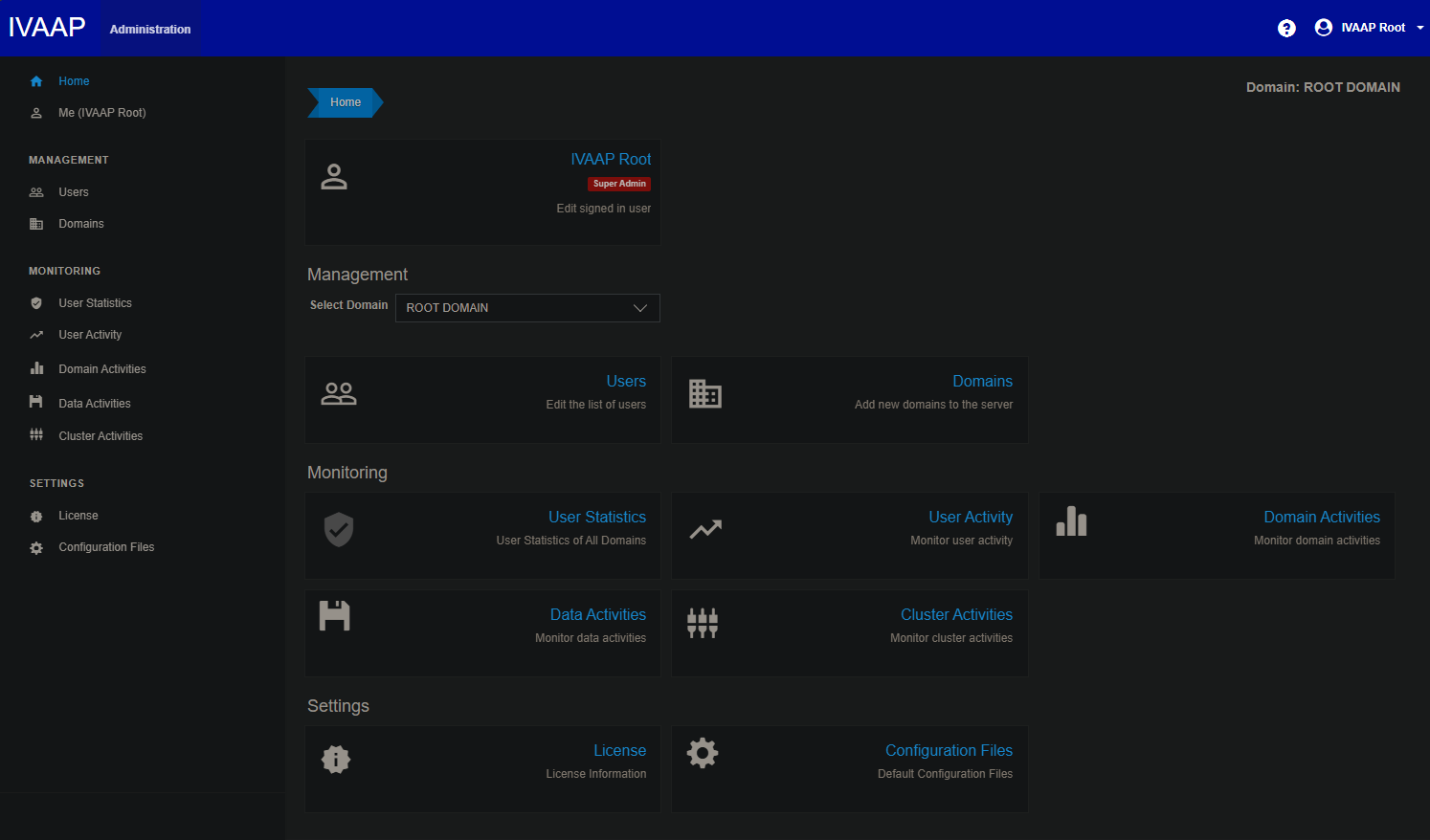
Now that you have confirmed IVAAP is up and running, it's time to attempt a login. The final output of the installation script will include your Super Admin credentials. The password is randomly generated by the script, but feel free to change this to your desired super admin password.
SUPER ADMIN CREDENTIALS:
Username: ivaaproot@int.com
PW: curedtaxisextol3

Use this password to login to the admin client http://ivaap.local/admin
NOTE: This username and password will not work on the dashboard page, and can only be used for administration

Setting new password in PostgreSQL Database...
CREATE EXTENSION
UPDATE 1
It is important to note, the super admin can not use the standard IVAAP dashboard viewer page. This user is for adminstration purposes only, and can only access the /admin page.
Next Steps
Now that IVAAP is up and running, it's time to implement the more advanced deployment configuration.
TLS Secret
-
.Values.environment.TLSSecret.secretName
Next for your IVAAP deployment, you likely will want to enable HTTPS, and provide a TLS certificate. In your deployment yaml, /opt/ivaap/ivaap.values.yaml, created by the installation script, the TLS secret name is ivaap-tls-secret. This can be set to whatever name you choose. Before deploying the TLS Secret, set the secret's enabled flag to true, then create the secret with the following kubectl command:
kubectl create -n ivaap secret tls <secretName> \
  --cert=path/to/cert.crt \
  --key=path/to/private.key
We highly encourage using a certificate from a trusted certificate authority, such as Let's Encrypt. However, if your certificate is self-signed, additional steps may be required to add the root CA to the JVM keystore for backend components. Refer to Adding Self Signed Root CA to Java Keystore for steps on this process.
More information about the TLS secret can be found in the TLS Secret section of the General Helm Configuration guide.
Authentication
If you plan to use local authentication, then there is no need to make any changes to the deployment. You can go ahead and start creating users, groups, and domains within the IVAAP admin client.
However, if you plan to use external authenticaiton, this is the point to start modifying the deployment for that configuration. Refer to the following guides for external authentication setup:
- IVAAP Authentication
- External Authentication section of the General Helm Configuration guide.